Identify your opener
Choose the brand and visible hardware. We’ll show compatible options only when the details agree.
What brand is on the opener?
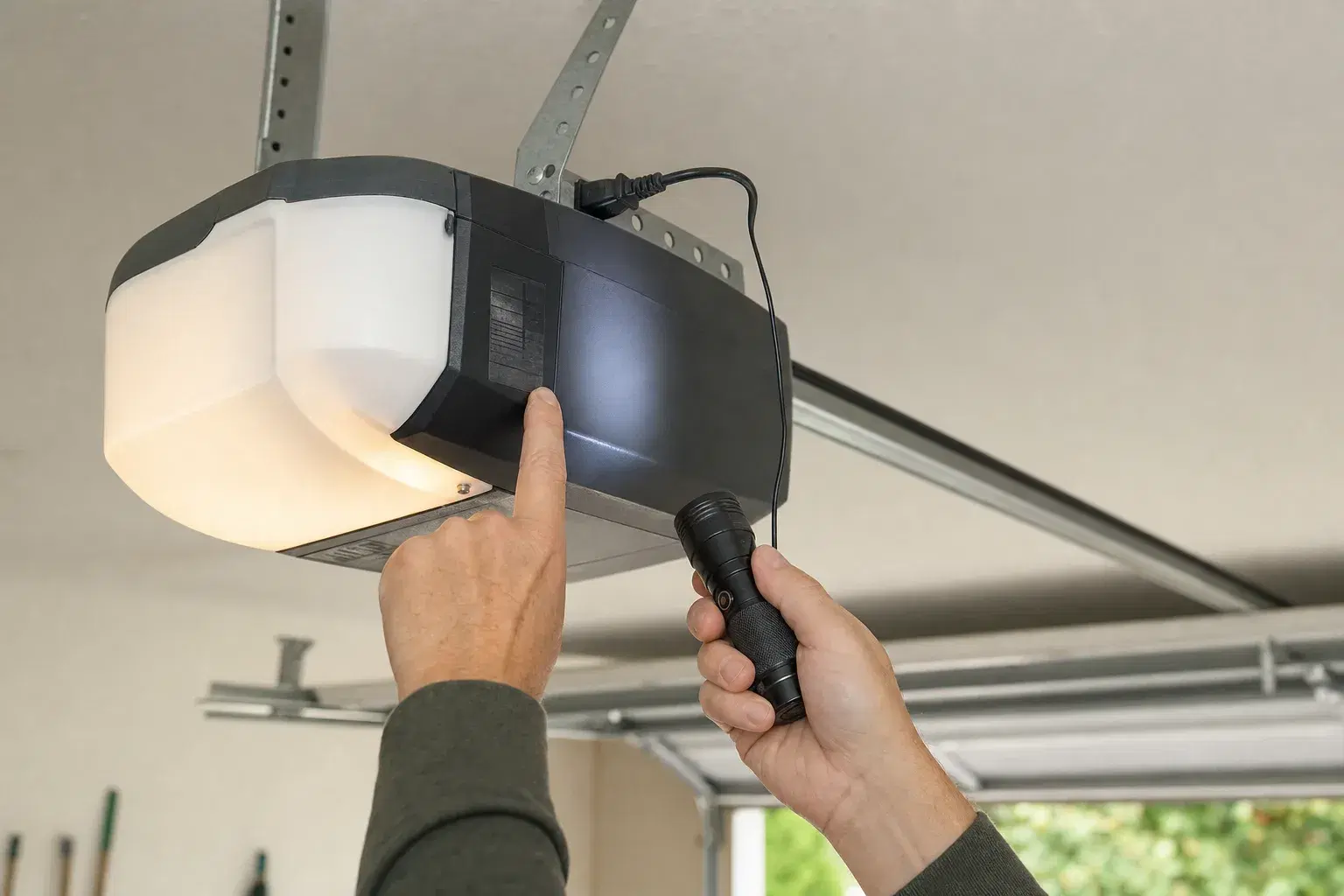
Where to find the details
01Find the opener model label+
The complete model on the ceiling-mounted opener is the strongest starting clue for remote compatibility.
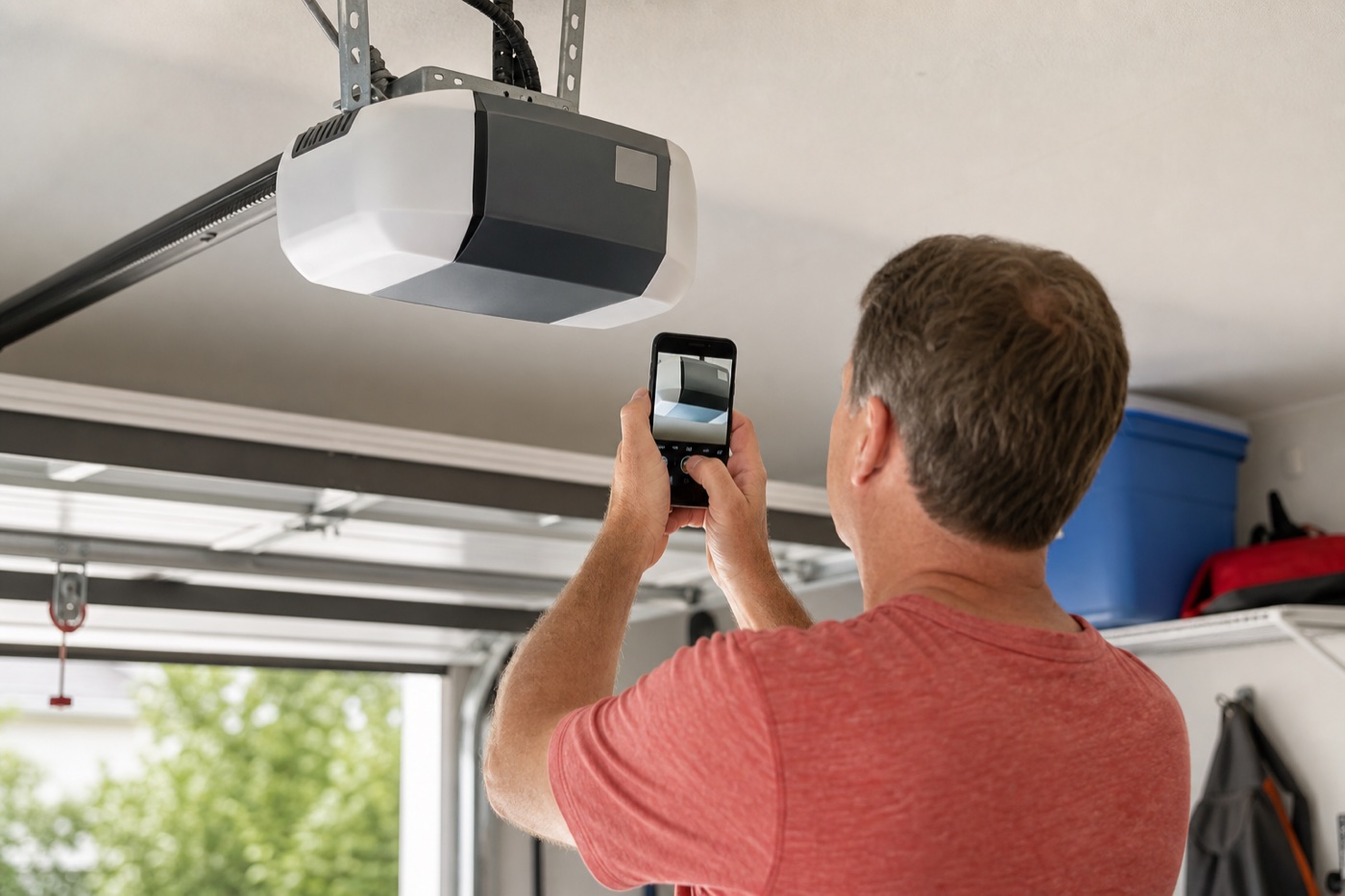
- Find the motor unitLook at the opener attached to the garage ceiling, not the wall control or handheld remote.
- Check the housingLook along the sides, back, and underside for a printed model label. It may sit near the light cover.
- Preserve the complete modelUse your phone camera’s zoom and keep every letter, number, dash, and suffix together.
What you’re looking forA printed brand and complete model on the opener housing—not the remote or wall button.
Check safely: Inspect from the floor with your phone’s zoom. Do not climb or remove a fastened cover.
02Check for an added receiver+
An added receiver changes which remote works, even when the opener model stays the same.
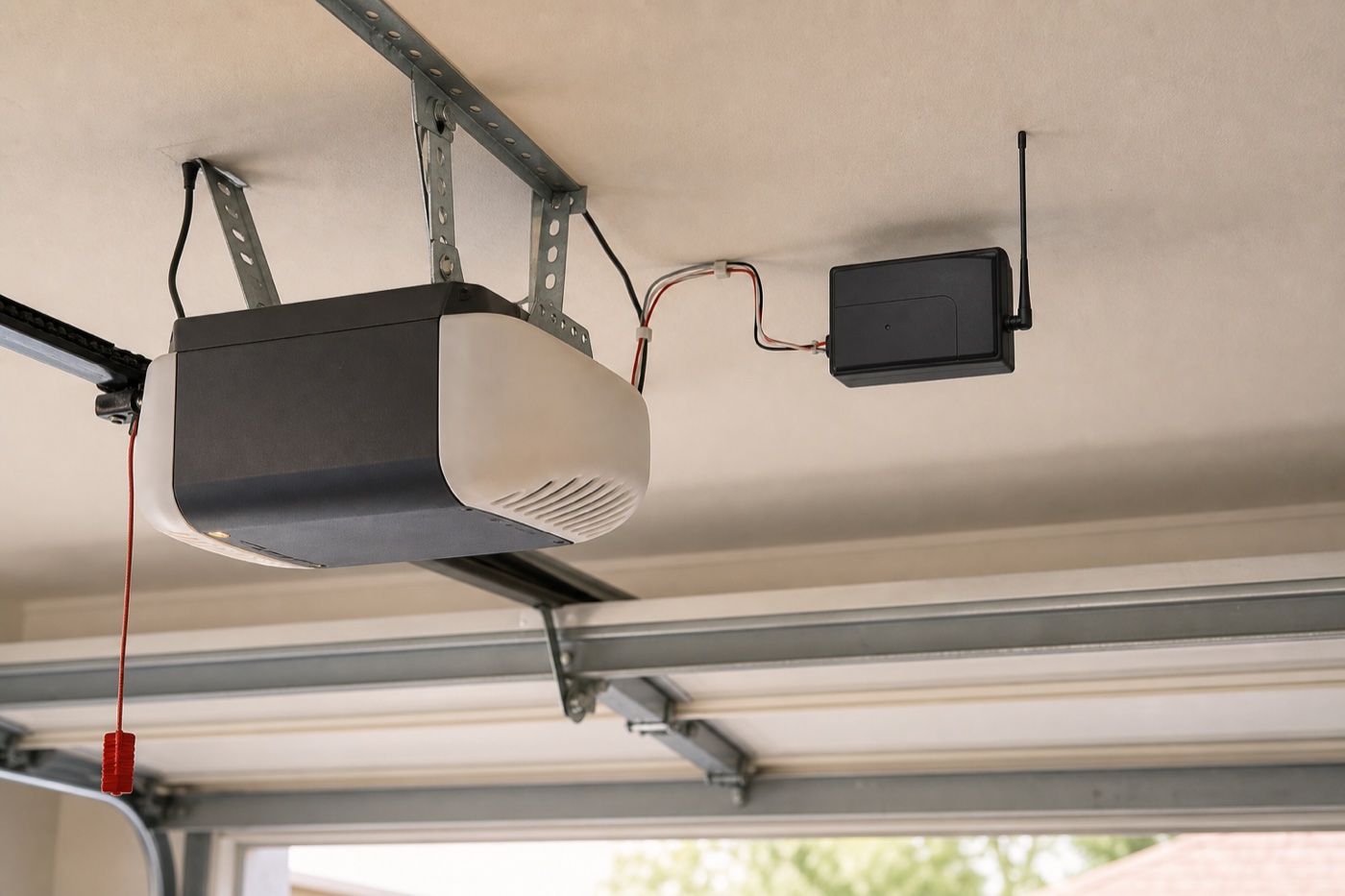
- Find the opener motor unitStart with the main opener attached to the garage ceiling.
- Look beside itCheck for a separate wired box mounted nearby. It may have its own antenna or model label.
- Follow the wires visuallyIf the smaller box connects to the opener, choose “Yes, I see one.” Do not disconnect anything.
What you’re looking forA separate wired box with its own antenna, buttons, or printed model label.
Check safely: Inspect from the floor and use your phone’s zoom if needed. Do not climb or touch the wiring.
03Find the Learn button+
The Learn button is on the ceiling-mounted opener motor unit, not on the wall control or handheld remote.
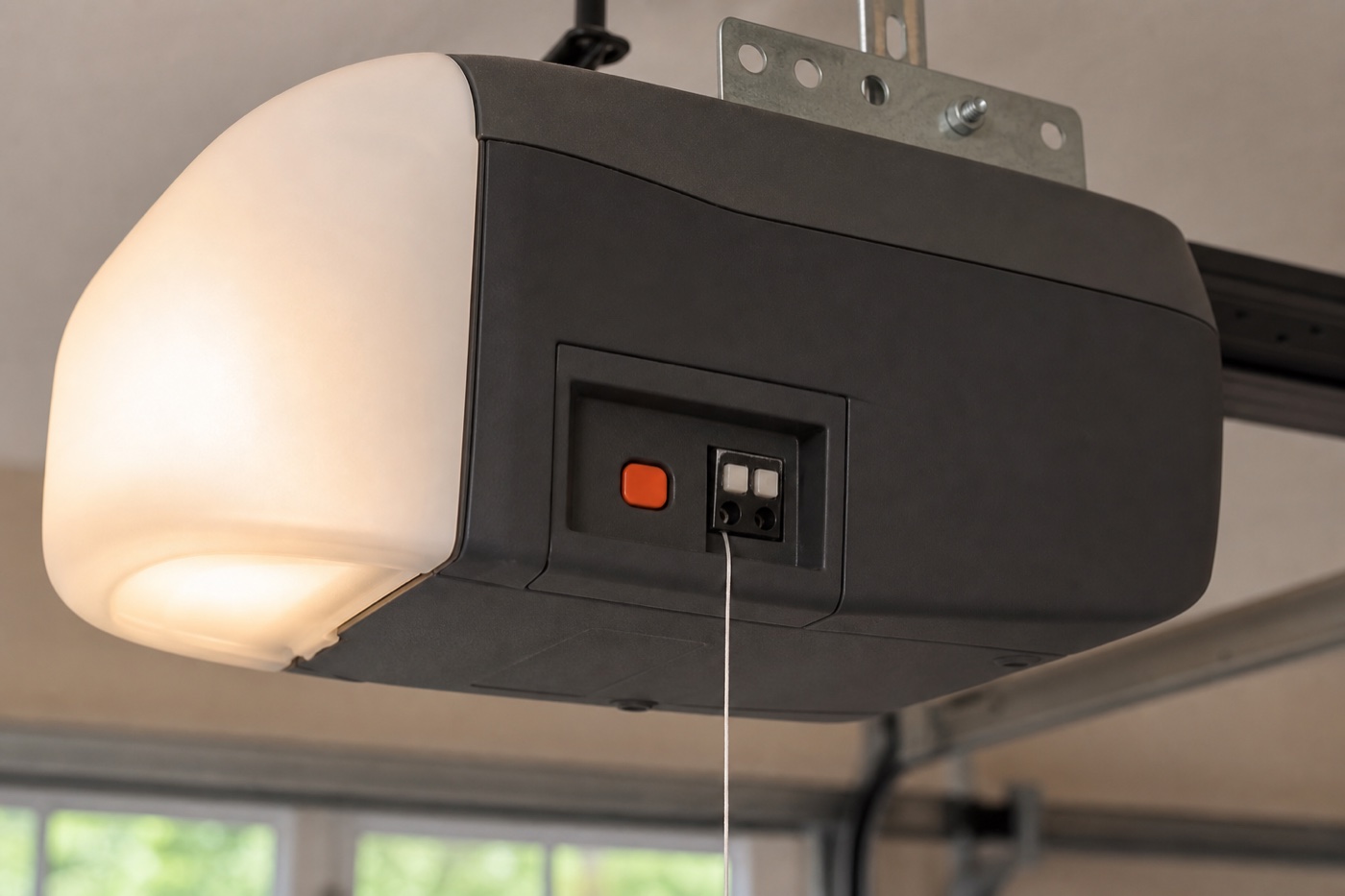
- Look for the antenna wireFind the thin wire hanging from the opener motor unit. The Learn button is often nearby.
- Check around the light coverLook along the sides and back of the motor unit or beneath a light cover designed to swing open.
- Match the button itselfUse the color of the plastic button—not a nearby indicator light or wiring terminal.
What you’re looking forA small colored button on the motor unit near the antenna wire, controls, or light cover.
Check safely: Stay on the floor when possible. Never remove a fastened cover or climb if you cannot inspect it safely.
04Check the safety sensors+
Safety sensors are two small wired photo eyes facing each other near the bottom of the door tracks.
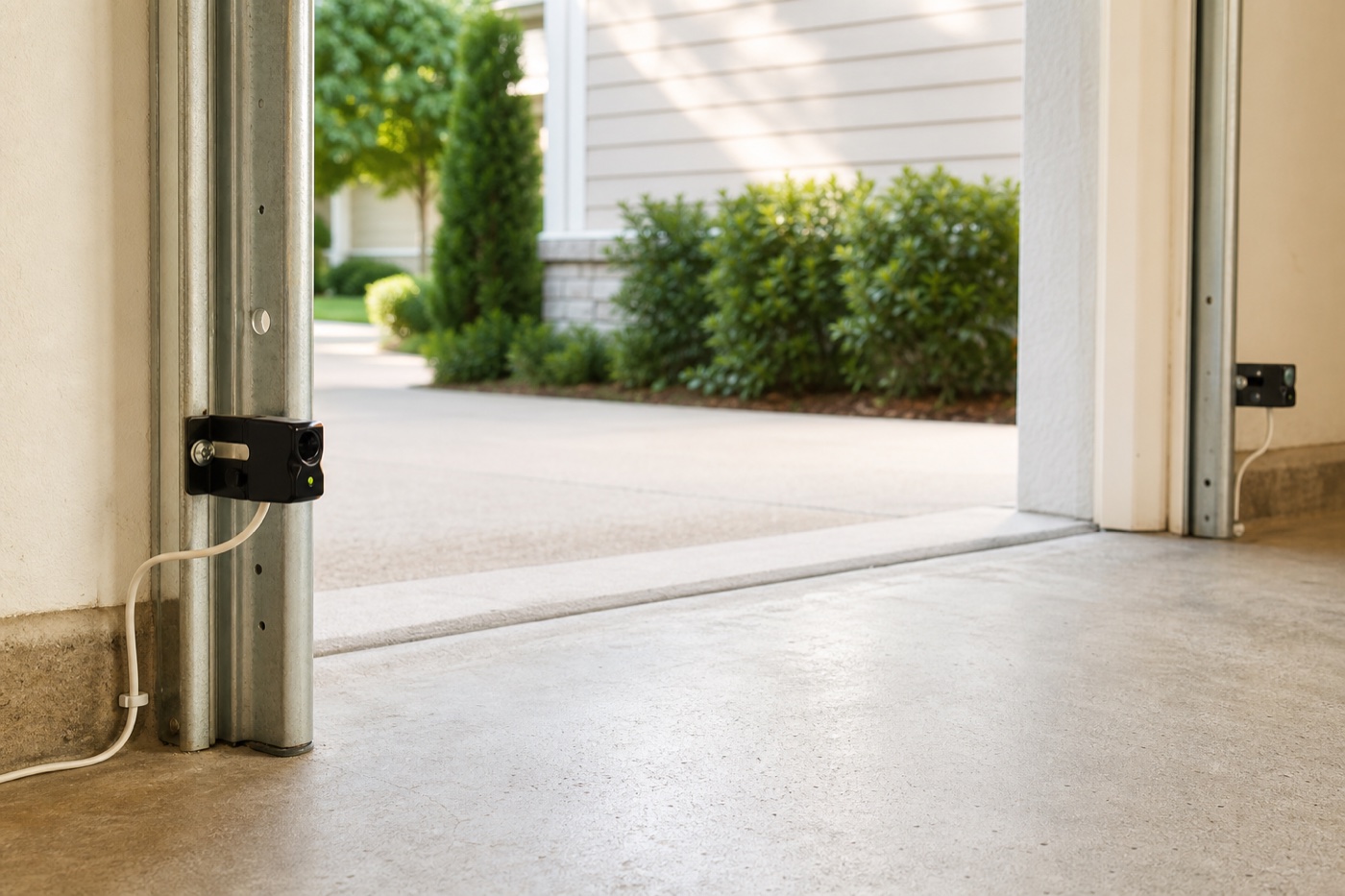
- Look at the bottom of one trackStart a few inches above the floor where the garage door travels.
- Find the matching sensorLook across the doorway for a second small wired photo eye at the same height.
- Confirm both sidesChoose “Yes” only when you see one sensor on each side. Small indicator lights may be visible.
What you’re looking forTwo small wired photo eyes facing each other near the bottom of the door tracks.
Check safely: Keep clear of the door’s path and inspect from the floor. Do not move or realign the sensors.